
This guide is for Quran Friends teachers: how to take students, run the live lesson, give homework and write the report, all from app.quranfriends.com.
1Apply to join
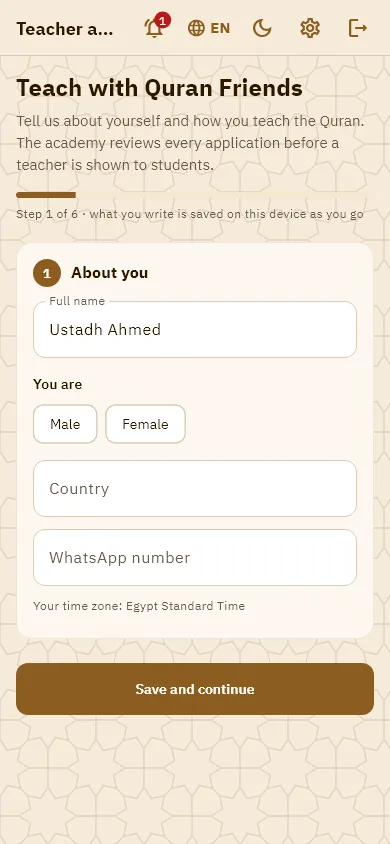
Create an account and choose Teacher, then complete the application: a short bio, what you teach and a short recording of your recitation. The academy reviews it, and once approved you appear in the teacher list.
2Your Today page
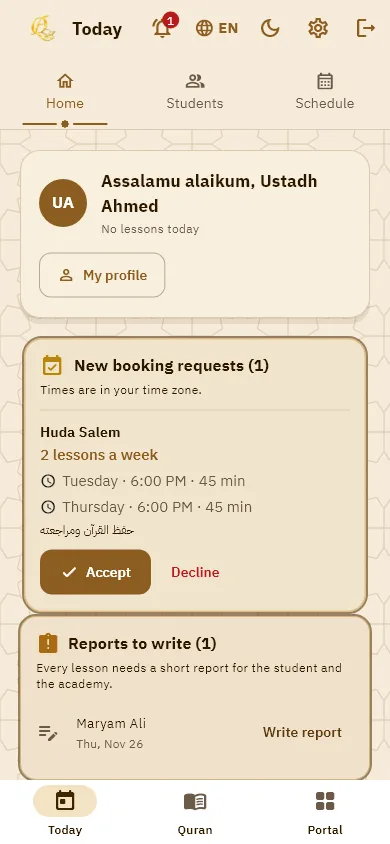
Your home page shows:
- New booking requests: tap Accept or Decline. Times are in your time zone.
- Reports to write: every lesson needs a short report.
- Your next class, the last lesson’s mistakes and Start Class Room.
- Quick Actions: New homework, Send a reward, Send a certificate.
The Home, Students and Schedule tabs are at the top.
3The class room
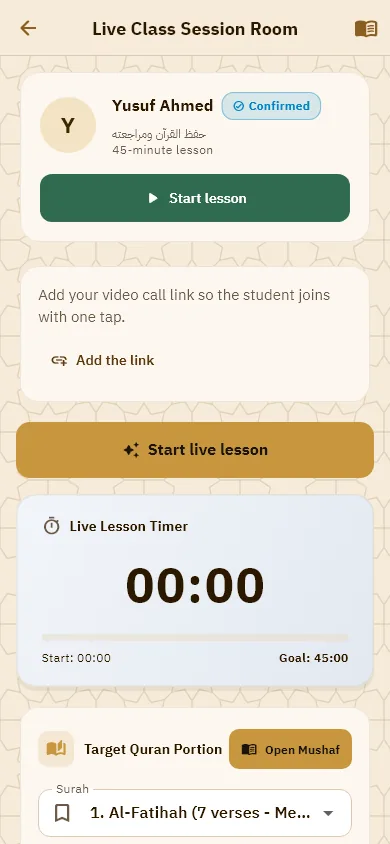
In the class room, tap Add link and save your Zoom or Meet link once, so the student can join the call in one tap. Choose the target surah and ayahs, then tap Start live lesson. The timer counts the lesson time.
4The shared Mushaf and marking mistakes
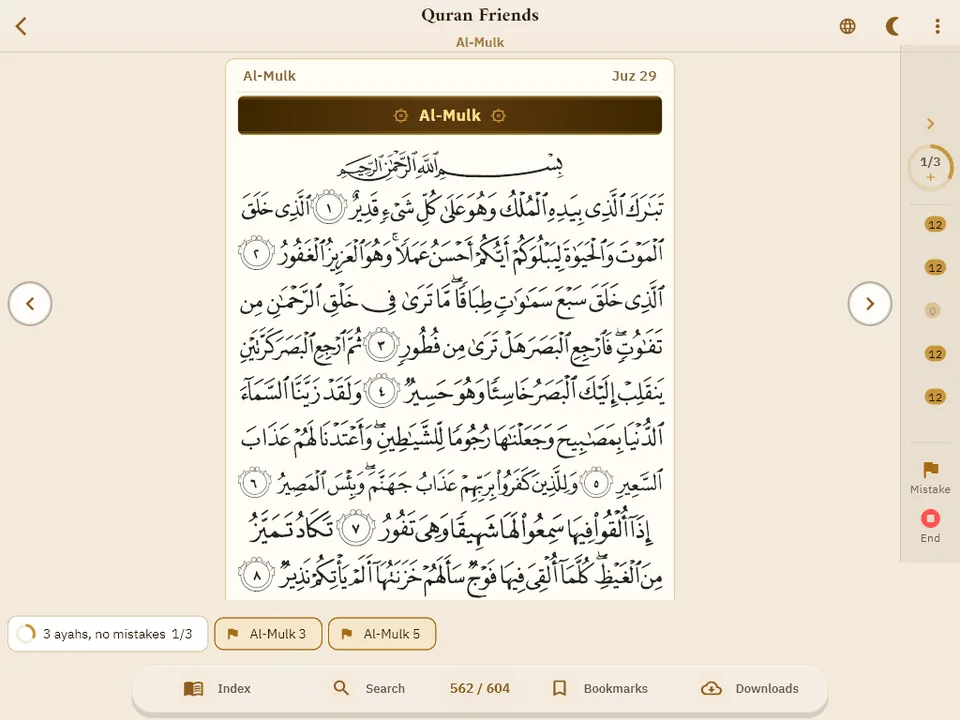
In the live lesson the student sees the same page as you. Record mistakes with the Mistake button; they show on the ayahs and are saved in each student’s record. Tap End when you finish.
5Give homework
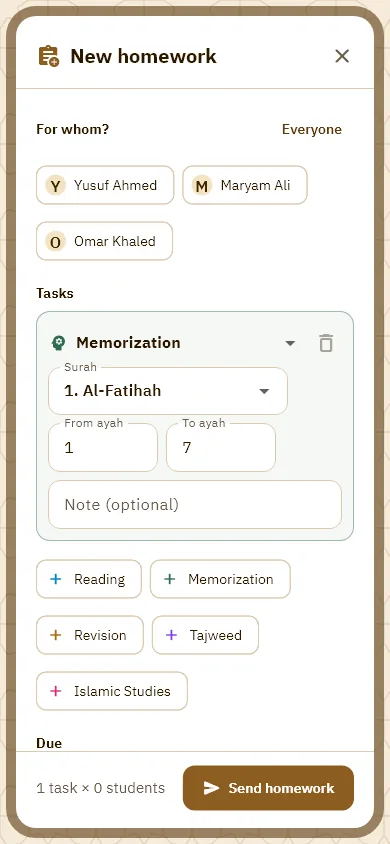
From New homework, choose one student or everyone, then the tasks (Reading, Memorization, Revision, Tajweed, Islamic Studies) with the surah, ayahs and due date, and tap Send homework.
6Message your students
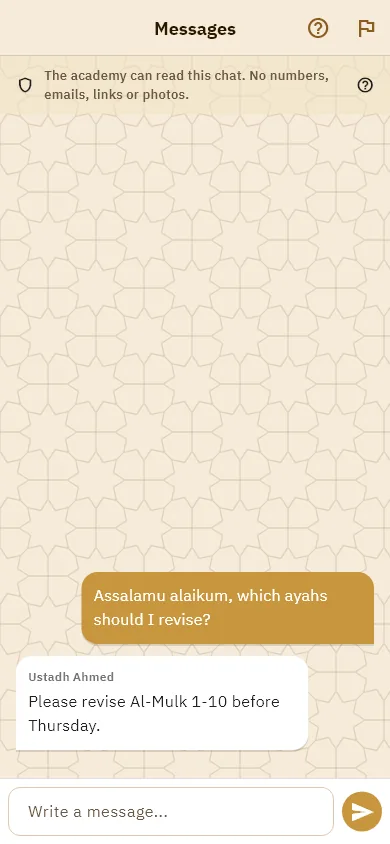
Messages in the app are for lessons only. Please don’t send phone numbers or outside links in messages; this protects students and teachers.
Pilot checklist (for the teachers taking part)
- Sign in and complete your profile (photo, bio, what you teach).
- Check that your time zone is right in Settings.
- Add your available times under Schedule.
- Save your Zoom or Meet link in the class room (Add link).
- Run a short live lesson with one student; record a test mistake, then remove it.
- Send homework to a student and check that it reached them.
- Write the lesson report after every lesson.
- If something goes wrong, send it from Need help? with a screenshot.